|
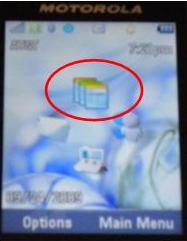
Step 5 - Running AirMobility Photo and Configuring Bar Code Reader Launching the first time - To launch AirMobility after the phone is turned on, simply click the up cursor to launch. AirMobility Photo is the icon below that looks like three work order papers stacked on top of each other and is in the UP CURSOR position.
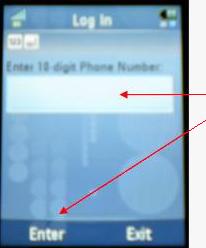
The next steps will be familiar to you if you have used an i580 unit in the past. Running the AirMobility Photo program the first time will request the phone number of the handset. Please enter in the 10 digit number of your phone and select Enter (Left Soft Key).
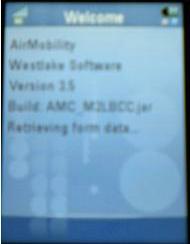
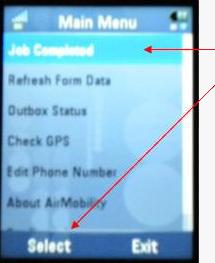
This will start the familiar Retrieving Form Data notification and take you to the Jobs Completed form, Shelter Maintenance, CAPEX Reporting, Inventory, or any other forms you are currently using at your location and assigned to that phone.
What if Jobs Completed or my forms DO NOT appear after it attempts to Retrieve Form Data (what you will get is a first menu item that starts with Refresh Form Data or something not your forms)? One of three things happened:
The process of using the forms on the Tundra is identical to that of the i580. Simply walk through the form items to complete a form and submit. For setting up the bar code reader for the first time, walk though any form assign to that handset (Jobs Completed, Shelter Maintenance, etc.) as guided below.
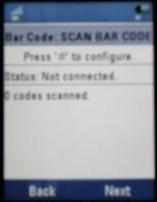
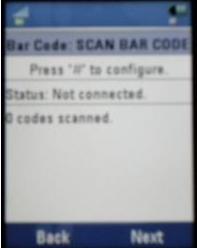
In whatever bar code form you choose, you will come to the scanning screen that is identical to what was on the i580 units. With the Tundra, we set up the blue tooth configuration after you enter the program and come to this screen:
Nothing has changed in setting up multiple phones and scanners. If you have multiple scanners on in the blue tooth environment, they will all be found and the set up will be more difficult. Have one scanner and phone with you when you do each set up, then isolate a configured scanner and phone far away from the second phone you set up.
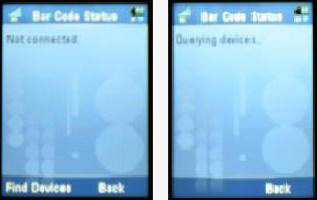
This will start the blue tooth device querying process. Note, if you have multiple devices found, you need to better isolate other scanners that may be within the reach of the phone you are setting up.
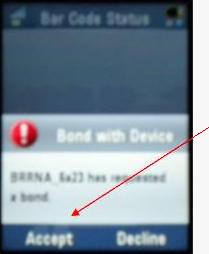
The older Baracoda bar code scanners will display as Brr; the newer Evolution scanners will display in the format below. In both cases, use the Left Soft Key and choose Accept.
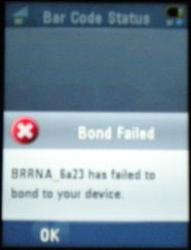
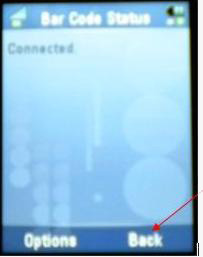
You will then get a Connected notice below, select Back with the Right Soft Key (note - if you can not get your scanner connected by using the steps above, please contact Westlake directly for help).
The scanner should be flashing now a green light two times quickly which means it is paired with that phone. Try doing a test scan to ensure connectivity. Scan when you are back to this screen:
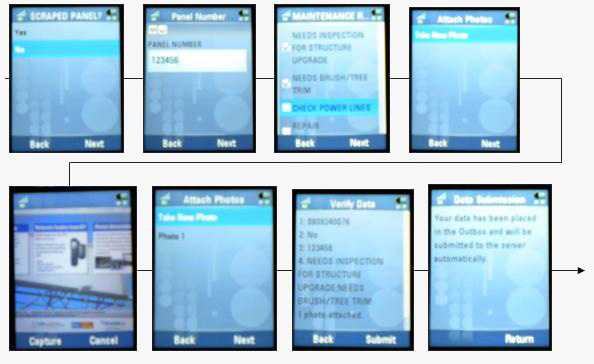
The remainder of the screens is the same form an function as the i580 units. The Jobs Completed form for Posters and general Rotate are shown below.
CHANGE TO OUTBOX - The Tundra has a different Outbox design than the i580 units. The i580 would display in real-time the status of the Outbox. This is not possible on the Tundra technically. You will now click on Check Outbox Status to query if there are any records in the Outbox and how many when required. Additional Notes on Scanners - There are two different Baracoda barcode readers being used nationally. One is the Baracoda Road Runner scanner (older) and the other will be marked on the box and the scanner as an Evolution. Both are compatible with the Tundra.
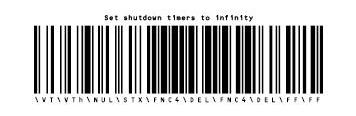
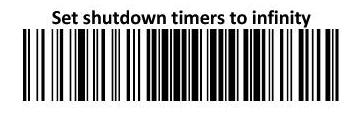
Infinite Mode code for newer Evolution Models ( will say Evolution in the back of the scanner in small print):
Link to Baracoda Bar Code Reader Manual (older scanners)
|