|
Step 4 - Configuring AirMobility Software Shortcut on the Setting up a Shortcut on a Motorola Tundra (Mandatory) The Motorola Tundra is much more advanced than the Motorola i580. It is important that a shortcut to the application is setup in the exact manner outlined below. Not only will this make the phone easier for your field force to use but it will make it easier for our organization to support your efforts moving forward.
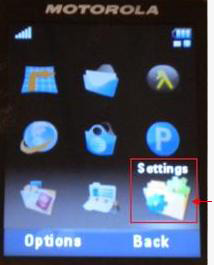
This will bring up the Menu screen. Scroll down and over (carefully as the cursor is more sensitive on the Tundra than the i580) to Settings (place your thumb center on the cursor and then slide it down to feel the edge of the down cursor option). Factory default to select this option is the number 9. If you see Settings in the 9th spot per the screen shot below, you can just press 9.
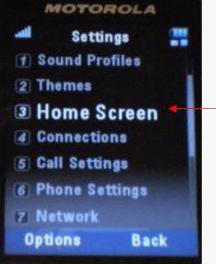
To select Settings, select the center cursor key on the Tundra. Select Home Screen by either choosing the number 3 or scrolling down and selecting.If Home Screen is not listed as number 3, select the number on your handset that selects Home Screen.
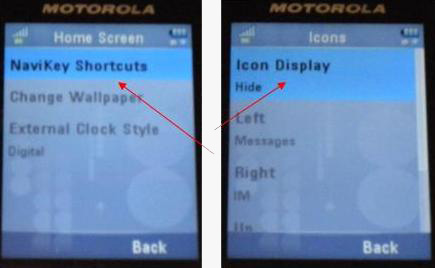
Then Choose Navikey Shortcuts by clicking the Center Key and then choose Icon Display by using the Center Key and switch this option to SHOW. To go from Hide to Show, a window will pop up (not shown) where you can scroll between Hide and Show by moving the up and down cursor. We require this setting to be on SHOW.
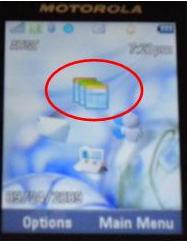
What this does to the startup screen of the Tundra is display Icons that are available if you select UP, DOWN, LEFT and RIGHT on the cursor; versus a blank screen by default (see next screen shot with icon on it).
The next section will walk through the entire setup process including the configuration of the bar code reader.
|