|
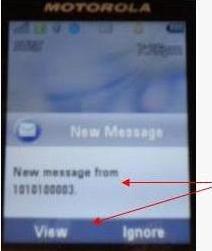
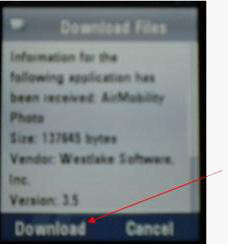
Step 3 - Downloading Software to the Motorola Tundra One of the first items you will likely be doing with this handset is setting up AirMobility Photo. Unlike the i580 in where we needed much intervention upfront to get the software ready for download, that is not the case with the Motorola Tundra. In the previous step, you had just sent a text message to the Tundra. And, if the data plan is active and the number was entered in correctly, the follow screen will pop up:
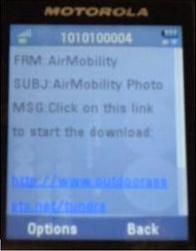
Click the Left Soft Key and select VIEW. This will take you to the following screen (note, this screen may vary but in all cases, a blue link to download from http://outdoorassets.net/tundra will display).
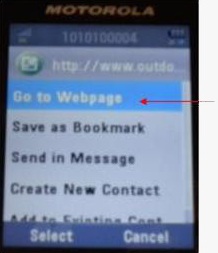
Note, the following step is subtle. On the round circle cursor on the phone key pad, click the down cursor until the link highlights and STOP (on our Tundra, the link is blue and turns purple when highlighted). Your color may vary if you have personalized the phone in any way beyond the factory presets.
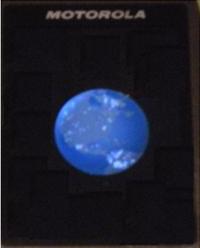
This will trigger the ATT World Wide Web Globe while connecting to the download page.
You may see a different screen for a moment after the globe, but the handset will take you directly to the download page:
Note: If you get an error on the screen, please follow the last few steps a try again. During our testing, one out of every ten attempts the network failed to connect to our server. Simply try again if this happens. If this happens more than 3 times, please contact us.
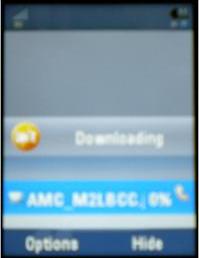
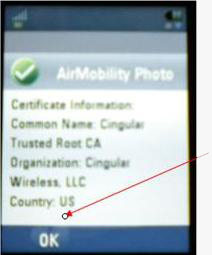
A percentage of completion of the download will be indicated and take you to the following acceptance/OK screen. Use the Left Soft Key and select OK.
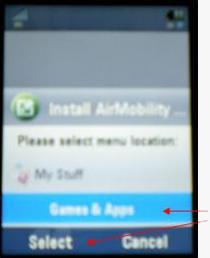
The Tundra will then ask what directory you wish to place AirMobility Photo in. Select Game and Apps for this option by highlighting Games and Apps (most handsets will have this as the default when you enter this screen). Choose Select by clicking on the Left Soft Key.
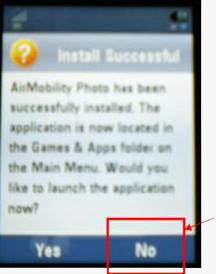
The Tundra will then display an Install Successful notification and ask if you wish to run the application now. We suggest that you use the Right Soft Key at this time and choose No at this point of the set up. The next step outlines how to make a shortcut on your Main Tundra screen and strongly suggest this is the next step.
Select No and Exit.
|